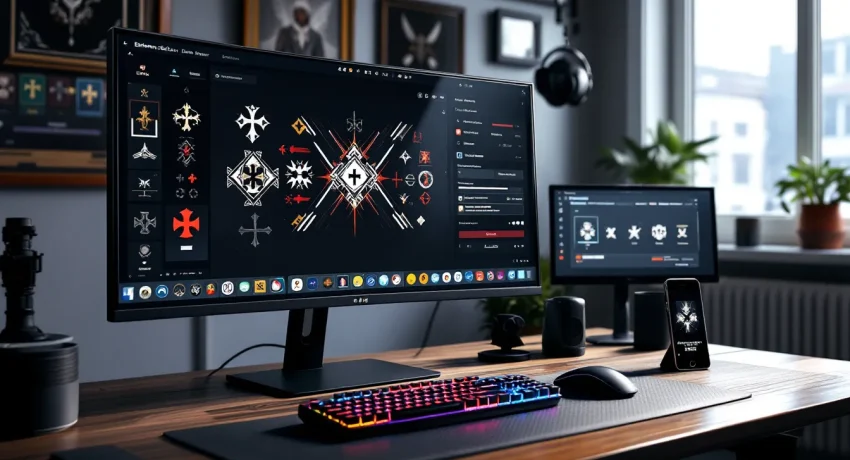

Your emblem in Battlefield 1 isn’t just decorative, it’s your calling card on the battlefield. Every time you take down an opponent, capture an objective, or repair a vehicle, your emblem shows up. It’s how you mark territory, intimidate enemies, and rep your squad across every map from Amiens to Argonne Forest.
The emblem system carried over from previous Battlefield titles but refined the customization tools enough that players could create everything from historically accurate regimental badges to pixel-art memes. Whether you’re rolling solo or coordinating with a clan, a well-designed emblem makes your presence felt. This guide covers everything from accessing the editor to advanced layering techniques that’ll make your design stand out on vehicles, weapons, and killcards.
Table of Contents
ToggleKey Takeaways
- Battlefield 1 emblems are custom-designed logos that display on your soldier’s gear, vehicles, weapons, and killcards, serving as your personal brand across the battlefield.
- The emblem system uses a layer-based editor with up to 40 layers of geometric shapes, letters, and symbols that you can customize via Battlelog (web) or the Companion App (mobile).
- High-contrast colors, simplified designs, and strategic use of negative space are essential for creating Battlefield 1 emblems that remain visible and readable on different weapon finishes and vehicle surfaces.
- Popular emblem categories include historical WWI insignia (Iron Cross, RAF Roundels), gaming and pop culture references, and organized squad/clan branding for team identity and recognition.
- Emblem codes can be imported and shared across the community through Reddit, Discord, and fan sites, allowing players to instantly adopt others’ designs or distribute their own creations.
- Optimize emblem designs by testing visibility at small sizes, limiting your color palette to 3-5 colors, and prioritizing readability over complexity to ensure your emblem stands out in-game.
What Are Emblems in Battlefield 1?
Emblems are custom-designed logos that appear on your soldier’s gear, vehicles, and in the kill feed when you eliminate opponents. Think of them as your personal brand across the Western Front.
They display in several key places:
- Vehicles: Tanks, planes, and cavalry horses show your emblem prominently on their sides
- Weapons: Your primary and secondary weapons feature the emblem on specific locations (stock, receiver, or grips depending on the weapon)
- Killcards: When you eliminate an enemy, they see your emblem on the death screen
- Dog tags: Your emblem appears on collected dog tags after melee kills
Emblems use a layer-based system with up to 40 layers total. Each layer can be a geometric shape (circles, squares, stars, etc.), allowing you to build complex designs by stacking and arranging these elements. The editor includes basic shapes, symbols, and letters, plus color customization for each layer.
Unlike some games that restrict emblem visibility to premium players, Battlefield 1 makes emblems available to everyone. The catch? You can’t create or edit them directly in-game. You need to use either Battlelog (the web-based system) or the Battlefield Companion App.
How to Access the Battlefield 1 Emblem Editor
You’ve got two ways to build your emblem: through the legacy Battlelog website or via the mobile Companion App. Both sync to your EA account and update across all platforms (PC via Origin, PS4, and Xbox One).
Using the Battlelog Emblem Creator
Battlelog is the web-based hub DICE built for Battlefield management. Even though BF1 moved away from Battlelog for server browsing, the emblem editor still lives there.
To access it:
- Navigate to battlelog.battlefield.com in any browser
- Sign in with your EA account credentials
- Click your username in the top-right corner
- Select “Emblem Gallery” from the dropdown menu
- Click “Create New” or edit an existing emblem
The Battlelog editor gives you the full desktop experience with precise mouse control for positioning and resizing. It’s the preferred method for complex designs that require pixel-perfect alignment. The interface shows all 40 layer slots on the right sidebar, with each layer’s visibility, lock status, and basic properties.
One quirk: Battlelog still references older Battlefield titles, so you might see emblems from BF4 or Hardline if you played those. Your active emblem applies across all connected Battlefield games.
Navigating the Companion App for Emblem Editing
The Battlefield Companion App (available on iOS and Android) offers a streamlined mobile editor. It’s convenient for quick tweaks but less precise than the desktop version.
Setup process:
- Download the Battlefield Companion App from your device’s app store
- Log in with the same EA account linked to your game
- Tap the “More” menu (bottom navigation)
- Select “Emblem”
- Choose “Create” or edit existing designs
Touch controls make rotation and resizing intuitive with pinch-and-zoom gestures, but fine-tuning small elements gets frustrating on smaller screens. The app is solid for designing on the go or making color adjustments between matches, but serious emblem artists stick with Battlelog for detailed work.
Step-by-Step Guide to Creating Custom Emblems
Building an emblem from scratch involves layering shapes, tweaking colors, and positioning elements until your vision comes together. Here’s how to work through the fundamentals.
Understanding Layers and Shapes
The editor operates on a layer stack system, each shape you add becomes a new layer positioned above or below existing ones. The bottom layer shows first: subsequent layers stack on top, covering anything beneath them.
Available shapes include:
- Basic geometry: circles, squares, triangles, hexagons
- Stars and crosses in various point configurations
- Arrows and directional indicators
- Letters and numbers (full alphabet and numerals 0-9)
- Symbols: skulls, animals, military insignia, national flags
- Abstract shapes and borders
Each shape can be manipulated independently. Selecting a layer highlights it with control handles for resizing and rotation. The layer order determines visibility, if a red circle sits below a black square, only the parts of the circle extending beyond the square’s edges will show.
Most players hit the 40-layer limit faster than expected when building detailed designs. Plan your layers carefully and combine similar colors where possible to maximize efficiency. Many effective emblems use 20-30 layers, saving the remainder for final details and highlights.
Color Selection and Palette Strategies
The editor provides a full RGB color picker with hex code input support. You can dial in exact colors or choose from preset swatches.
Color best practices:
- Contrast is king: High-contrast emblems (black/white, red/yellow, blue/orange) remain visible on all vehicle types and weapon finishes
- Limit your palette: Stick to 3-5 main colors for cohesive designs: too many colors look chaotic at small sizes
- Consider backgrounds: Your emblem appears on tan desert tanks, green forest camo, and dark metal weapons, test visibility across different surfaces
- Use opacity strategically: Some players adjust layer opacity for gradient effects, though this eats through layer count quickly
Hex codes let you match exact brand colors or historical unit insignia. If you’re replicating a real WWI division patch, finding the authentic color codes and plugging them in gives historical accuracy enthusiasts will appreciate.
Resizing, Rotating, and Positioning Elements
Precise placement separates amateur emblems from professional-looking designs. The editor offers both visual handles and numeric input for exact positioning.
Resizing: Click and drag corner handles to scale shapes proportionally, or use side handles to stretch in one dimension. Hold Shift (on Battlelog) to maintain aspect ratio. Numeric width/height fields in the layer properties panel allow pixel-perfect sizing.
Rotating: The rotation handle (usually a circular icon or line extending from the shape) lets you spin elements to any angle. Many designs rely on rotated squares to create diamonds or angled elements that break up the composition. The numeric rotation field accepts degree values from 0-360.
Positioning: Drag shapes around the canvas visually, or input exact X/Y coordinates for precise alignment. Use the grid (if your editor version supports it) to snap elements to regular intervals, making symmetrical designs easier.
Pro tip: When building symmetrical emblems, create one half completely, then duplicate and mirror layers for the second side. It saves time and ensures perfect balance. Some editors lack built-in mirroring, requiring manual repositioning, annoying but manageable with coordinate inputs.
Advanced Emblem Design Techniques
Once you’ve mastered the basics, these advanced techniques let you create emblems that rival professionally designed logos.
Layering for Complex Designs
Depth and dimension emerge from thoughtful layer stacking. Treat your emblem like a digital collage where each layer adds detail or masks unwanted areas.
Techniques to try:
- Outline layers: Place a slightly larger black shape behind colored elements to create automatic borders and improve visibility
- Highlight and shadow: Stack lighter versions of shapes slightly offset to suggest depth and lighting
- Cutouts: Use background-colored shapes to “erase” portions of layers beneath them, creating negative space details without additional layers
Example workflow: To create a skull emblem with dimension, start with a white circle base. Add black circles for eye sockets. Layer a white oval slightly offset behind the skull to suggest a highlight. Add teeth using white rectangles with black outlines. Each layer builds on the previous one, creating complexity from simple shapes.
Some of the best community emblems use every single layer to build portraits, detailed vehicles, or elaborate clan logos. Check out communities like the emblem showcase on Twinfinite for inspiration on maximizing layer efficiency.
Creating Symmetrical and Asymmetrical Patterns
Symmetrical emblems convey order, professionalism, and military precision, perfect for historical unit recreations or clan tags. They’re easier to design because you only plan half the composition.
Building symmetrical designs:
- Work on the left or right half exclusively
- Use vertical centerline alignment to keep elements balanced
- Duplicate each layer and manually flip coordinates (if X-position is +20, make the mirrored layer -20)
- Fine-tune until both sides match perfectly
Asymmetrical emblems feel more dynamic and modern. They catch the eye because they violate expected patterns.
Asymmetrical strategies:
- Offset your focal point to one side using rule-of-thirds composition
- Balance visual weight, a large element on one side countered by several smaller elements on the other
- Use diagonal lines and angles to create movement across the canvas
Many players experiment with adapting creative strategies from tactical gaming into their emblem designs, treating the composition like a strategic map layout.
Using Negative Space Effectively
Negative space, the empty areas around and between design elements, is as important as the shapes themselves. Master designers use background color as an active part of the composition.
Negative space techniques:
- Knockout text: Place letters in the background color over a solid shape to create the illusion of cut-out text
- Hidden imagery: Clever use of negative space can hide secondary images that appear when viewed at certain sizes or angles
- Breathing room: Don’t fill every pixel, letting your design breathe makes it more readable at small sizes on weapons
The FedEx logo’s hidden arrow is the classic example of negative space mastery. Apply that thinking to emblems: maybe the gap between two shapes forms a meaningful symbol, or the background showing through creates an unexpected element.
Popular Emblem Ideas and Inspiration
Stuck on what to create? These popular categories represent what the BF1 community gravitates toward.
Military and Historical Themes
Battlefield 1’s WWI setting makes historically accurate emblems extremely popular. Players recreate division patches, national insignia, and regimental badges from the actual conflict.
Popular historical emblems:
- Iron Cross: Simple, iconic, highly visible, uses basic shapes rotated 45 degrees
- RAF Roundel: The classic red/white/blue circles representing Royal Air Force aircraft
- German Imperial Eagle: More complex, requiring careful layering for feather detail
- Unit patches: French Foreign Legion, Harlem Hellfighters, ANZAC forces
- Skull and crossbones variations: Timeless military iconography
Historical accuracy varies by player. Some meticulously research color codes and proportions: others go for “close enough” vibes. Either approach works as long as the final design reads clearly on a tank rolling past at full speed.
Gaming and Pop Culture References
Not everyone wants period-appropriate WWI emblems. Plenty of players import gaming references, anime characters, memes, and pop culture icons.
Common pop culture emblems:
- Gaming logos: PlayStation symbols, Xbox logos, Nintendo iconography
- Anime characters: Simplified versions of popular characters work well within the shape constraints
- Memes: Pepe variants, rage faces, trollface (yes, still in 2017 when BF1 peaked)
- Movie and TV references: Star Wars Rebel Alliance, House Stark direwolf, Deadpool logo
- Brand parodies: Modified energy drink logos, car manufacturers, sports teams
These emblems lean into Battlefield’s occasional absurdity, nothing breaks immersion quite like getting killed by a player with a Pikachu emblem on their tank. Some servers and communities frown on non-period emblems, but most players don’t care as long as the design looks clean.
Squad and Clan Emblems
Organized squads and clans treat emblems as team branding. A unified emblem across all squad members creates instant recognition and intimidation factor.
Clan emblem considerations:
- Incorporate clan tags: Use letter shapes to spell abbreviated clan names
- Choose distinctive colors: Pick a color scheme that stands out from default team colors (blue/red)
- Keep it simple: Complex emblems don’t reproduce well at small sizes: clan emblems should be instantly recognizable
- Version control: Ensure all members use the exact same emblem, distribute the emblem code so everyone imports the identical design
Some competitive clans commission custom emblems from talented community designers who’ve mastered the layer system. Others crowdsource ideas and vote on favorites. The goal is creating a visual identity that opponents learn to recognize, and fear.
How to Import and Share Emblems
The BF1 community built an entire sharing ecosystem around emblems, making it easy to use others’ designs or distribute your own creations.
Finding Emblem Codes and Community Designs
Emblem codes are JSON data strings that contain all layer information for a design. Copy someone’s code, paste it into the editor, and their emblem loads instantly into your account.
Where to find emblem codes:
- Reddit: r/BF1Emblems (now archived but still searchable for legacy codes)
- Emblem community sites: Several fan sites hosted emblem galleries with one-click import buttons
- YouTube tutorials: Many emblem creation guides include the final code in video descriptions
- Discord servers: BF1 community Discords often have emblem-sharing channels
Import process:
- Copy the emblem code (usually a long string of text starting with
{and ending with}) - Open Battlelog emblem editor
- Look for “Import” or “Code” option (interface varies by editor version)
- Paste the code into the text field
- Click “Load” or “Import”, the emblem populates all layers automatically
Be cautious with codes from untrusted sources. While emblems can’t contain malicious code that harms your system, poorly structured JSON can crash the editor. Stick to established community sources.
Players looking to expand their overall gameplay should consider how emblems fit into essential strategies for dominating beyond just visual customization.
Sharing Your Emblems with Others
Created something worth sharing? Export your emblem code and distribute it to the community.
Export steps:
- In the Battlelog emblem editor, select your finished emblem
- Click “Export” or “Get Code” (exact wording varies)
- The editor generates a JSON code string
- Copy the entire code, don’t miss any characters
- Share via Reddit, Discord, or community sites
Include a screenshot alongside the code so people know what they’re getting. Most emblem posts format like this:
Emblem Name: Iron Cross (Historically Accurate)

Screenshot: [image]

Code: {"objects":[...long JSON string...]

Instructions: Copy code, import via Battlelog
Some creators watermark their complex designs with hidden signatures to prevent uncredited copying, though the community generally respects attribution when asked.
Troubleshooting Common Emblem Issues
Emblems don’t always cooperate. Here’s how to fix the most frequent problems players encounter.
Emblems Not Showing Up In-Game
You designed the perfect emblem, but it’s not appearing on your weapons or vehicles. Several culprits could be responsible.
Sync delays: Changes made in Battlelog or the Companion App don’t update instantly. It can take 5-15 minutes for new emblems to propagate to game servers. Quit to the main menu and rejoin a server to force a refresh.
Emblem not set as active: You can save multiple emblems, but only your active emblem displays in-game. In Battlelog, look for the “Use this emblem” or “Set as active” button. The active emblem has a green checkmark or highlighted border.
Platform sync issues: If you play on console but edited on PC (or vice versa), ensure you’re logged into the same EA account. Cross-platform emblem sync requires consistent account linking.
Server-side caching: Some servers cache player data and don’t update immediately. Switching to a different server sometimes forces the new emblem to load.
Content restrictions: Rare, but some servers run emblem filters that block inappropriate content. If your emblem contains flagged elements, it might not display on filtered servers.
Layer Limit Problems and Workarounds
The 40-layer maximum feels restrictive when building complex designs. You’ve got options to work around it.
Optimization strategies:
- Merge conceptual elements: Instead of outlining every shape individually, use overlapping solid colors to create the illusion of outlines
- Simplify details: Step back and ask what details actually read at emblem size, eliminate layers that don’t contribute to overall clarity
- Use larger shapes for backgrounds: One big shape beats multiple smaller ones for filling space
- Strategic color choices: Pick colors that don’t need outlines for visibility
If you absolutely need more detail, consider splitting your design concept across multiple emblems and rotating them periodically. Some players maintain a “vehicle emblem” optimized for large display and a separate “weapon emblem” simplified for small-scale visibility.
Community discussions on IGN’s forums occasionally feature advanced techniques for maximizing layers through creative shape stacking.
Syncing Issues Between Platforms
Players who own BF1 on multiple platforms (say, PC and PS4) sometimes encounter emblem sync conflicts.
Common sync problems:
- Emblem shows correctly on one platform but not another
- Changes made on mobile app don’t appear on console
- Old emblems from previous Battlefield games override BF1 emblems
Solutions:
- Verify account linking: Log into EA’s account management and confirm all platforms connect to the same EA account
- Force logout and re-login: Sign out of BF1 completely, close the game, restart, and sign back in
- Clear cache: On console, clear the game cache (method varies by platform, usually involves holding power button while booting)
- Re-save the emblem: Open Battlelog, make a tiny change to your emblem (move one layer one pixel), save it, then change it back and save again, forces a new sync
- Contact EA support: Persistent sync issues might indicate account-level problems requiring support intervention
Cross-platform emblem syncing improved with patches throughout BF1’s lifecycle, but legacy accounts with data from BF3, BF4, and Hardline occasionally experience weird conflicts.
Best Practices for Standout Emblem Designs
Want your emblem to actually impress people instead of blending into background noise? Follow these design principles.
Visibility trumps complexity. An emblem that looks amazing at full size in the editor but turns into mush on a weapon barrel has failed its primary function. Test your design at small sizes before finalizing. If you can’t tell what it is when zoomed out, simplify.
High contrast saves lives. Dark blue on black might look sophisticated in the editor but disappears on half the game’s weapons. Stick to color combinations with strong value contrast: white/black, yellow/purple, red/green. Your emblem needs to pop against tan, green, gray, and brown surfaces.
Readability over detail. If your emblem includes text, use thick, bold letters with plenty of spacing. Script fonts and thin serifs become illegible at emblem scale. Limit text to 3-4 characters maximum, full words rarely work.
Unique beats generic. The Battlefield community has seen thousands of skulls, Iron Crosses, and national flags. Those designs work, but they don’t stand out. Adding a personal twist, unusual color scheme, unexpected element combination, or creative negative space, makes your emblem memorable.
Theme consistency matters for clans. If you’re designing for a group, ensure the emblem matches your clan’s identity and the broader Battlefield experience across titles. A mil-sim clan probably wants historically accurate insignia: a casual group might prefer memes.
Test on multiple surfaces. Before committing, preview your emblem on different vehicles and weapons. The editor usually includes preview options for tanks, planes, and guns. What works on a white plane fuselage might disappear on a dark rifle stock.
Respect the aspect ratio. Emblems display square in the editor but can appear stretched or compressed in-game depending on the surface. Avoid designs that rely on perfect circular shapes or precise proportions, build in some flexibility.
Save iterations. Battlelog lets you save multiple emblems. Create versions as you work so you can roll back if an idea doesn’t pan out. Some players save 5-10 variations of a core design, swapping between them based on mood or map.
Study successful designs. Browse community galleries and note what top-rated emblems have in common: usually bold shapes, limited colors, clear focal points, and clever use of negative space. Learn from what works and adapt those principles to your style.
Many competitive players coordinate emblems with tactical gameplay approaches, treating visual identity as part of their psychological warfare toolkit.
Conclusion
Emblems in Battlefield 1 offer a surprisingly deep customization system considering you’re limited to 40 layers of basic shapes. The best designs demonstrate that constraints breed creativity, you don’t need Photoshop-level tools to create something memorable.
Whether you’re recreating historical unit patches, repping your clan, or just slapping a meme on your tank, the emblem system gives you enough flexibility to express yourself. The web-based editor takes some getting used to, and sync issues occasionally frustrate, but once you’ve built a few designs, the workflow becomes second nature.
Your emblem follows you across every match, every vehicle, every weapon. It’s the signature you leave on the battlefield, make it count.