
This PlayStation guide covers everything players need to know about Sony’s gaming console. Whether someone just unboxed their first PS5 or has been gaming since the PS1 days, there’s always something new to learn. From initial setup to advanced features, this guide walks through the essential steps and tips that make the PlayStation experience smoother. The console offers incredible gaming potential, but many owners don’t use half of its capabilities. That changes today.
Table of Contents
ToggleKey Takeaways
- This PlayStation guide covers setup, essential features, and optimization tips to help you get the most out of your console.
- Place your PlayStation in a well-ventilated area with at least 10cm clearance and use a wired Ethernet connection for the best online gaming performance.
- The DualSense controller’s haptic feedback and adaptive triggers enhance immersion, but you can adjust intensity in settings for longer sessions.
- PlayStation Plus offers three tiers—Essential, Extra, and Premium—each providing different benefits from online multiplayer to classic game access.
- Keep at least 50GB of storage free for system operations and consider adding an NVMe SSD for expanded capacity.
- Calibrate HDR settings and choose between Performance Mode (60fps) or Quality Mode (better graphics) based on your gaming preferences.
Getting Started With Your PlayStation Console
Setting up a PlayStation console takes about 15-20 minutes for most users. Here’s how to get gaming quickly.
Unboxing and Physical Setup
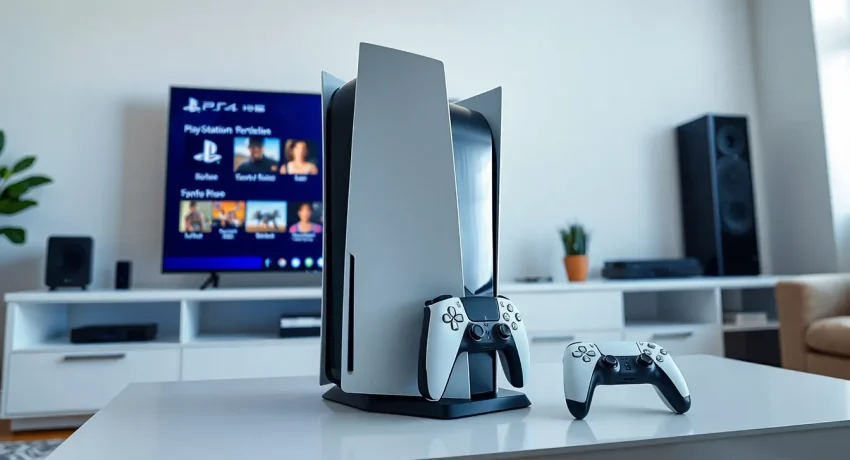
The PlayStation box contains the console, DualSense controller, HDMI cable, USB-C charging cable, power cord, and quick start documentation. Players should place the console in a well-ventilated area, Sony recommends at least 10cm of clearance around the vents. The console works horizontally or vertically with the included stand.
Connect the HDMI cable to a TV or monitor, plug in the power cord, and press the power button. The PlayStation logo appears, and the setup wizard begins.
Initial Configuration Steps
The setup process guides users through several screens:
- Language and region selection – Choose the appropriate settings for the local area
- Internet connection – Connect via Wi-Fi or Ethernet cable (wired connections offer better stability for online gaming)
- System software update – The console downloads the latest firmware automatically
- PlayStation Network sign-in – Create a new account or log into an existing one
- Privacy and data collection settings – Adjust these based on personal preferences
The PlayStation guide on-screen explains each step clearly. First-time users should take a few minutes to explore the home screen layout before jumping into games. The control center, accessed by pressing the PS button, provides quick access to common functions.
Controller Pairing
The DualSense controller pairs automatically when connected via USB during setup. To pair additional controllers, go to Settings > Accessories > Controllers > Bluetooth Accessories. Press and hold the Create and PS buttons simultaneously on the new controller until the light bar flashes.
Essential Features Every PlayStation Owner Should Know
The PlayStation console includes features that many owners overlook. This PlayStation guide highlights the most useful ones.
DualSense Controller Capabilities
The DualSense controller transforms gaming through haptic feedback and adaptive triggers. Haptic feedback creates precise vibrations that simulate in-game textures, rain feels different from explosions. Adaptive triggers provide resistance that matches on-screen actions, like drawing a bowstring or accelerating a vehicle.
Players can adjust or disable these features in Settings > Accessories > Controllers. Some users prefer reduced intensity during long gaming sessions.
Game Presets and Quick Resume
The PlayStation offers game presets that apply preferred settings automatically. Set default difficulty levels, subtitle preferences, and accessibility options once, and compatible games apply them immediately. Find this under Settings > Saved Data and Game/App Settings > Game Presets.
Rest Mode keeps games suspended, allowing players to resume exactly where they stopped. The console downloads updates and charges controllers during Rest Mode while using minimal power.
Storage Management
The internal SSD fills up faster than expected. Players should monitor storage through Settings > Storage. Options include:
- Deleting unused games and apps
- Moving games to compatible external USB drives
- Installing an NVMe SSD in the expansion slot (PS5 only)
This PlayStation guide recommends keeping at least 50GB free for system operations and updates.
Screenshots and Video Captures
Press the Create button to capture screenshots or record gameplay videos. The console can save the last 15-60 minutes of gameplay automatically, adjust this in Capture settings. Share directly to social media or transfer files via USB drive.
Navigating PlayStation Network and Online Services
PlayStation Network (PSN) connects millions of players worldwide. Understanding its services maximizes the gaming investment.
PlayStation Plus Tiers
Sony offers three PlayStation Plus subscription levels:
| Tier | Key Benefits | Best For |
|---|---|---|
| Essential | Online multiplayer, monthly free games, cloud storage | Casual online gamers |
| Extra | Everything in Essential + Game Catalog (400+ games) | Players who try many games |
| Premium | Everything in Extra + Classics Catalog + game trials | Retro fans and heavy gamers |
The Game Catalog includes major titles like God of War, Spider-Man, and Returnal. Monthly games become permanently available as long as the subscription stays active.
PlayStation Store Tips
The PlayStation Store runs sales regularly. Major discounts happen during:
- Days of Play (usually May-June)
- Black Friday and holiday sales
- Weekly deals every Wednesday
- Publisher-specific sales throughout the year
Add games to a wishlist, and the console notifies users when prices drop. This PlayStation guide suggests patience, most games drop 30-50% within six months of release.
Friend Lists and Parties
The PlayStation social features let players connect easily. Send friend requests using PSN IDs or real names. Create parties for voice chat during gaming sessions, even across different games.
Privacy settings control who can send messages, see online status, and view activity. Access these through Settings > Users and Accounts > Privacy.
Tips for Optimizing Your Gaming Experience
A few adjustments significantly improve how games look, sound, and feel.
Display Settings
The PlayStation detects TV capabilities automatically, but manual adjustments often yield better results. Check Settings > Screen and Video for options:
- Resolution – Set to match the TV’s native resolution (1080p or 4K)
- HDR – Enable for compatible displays: calibrate using the on-screen tool
- 120Hz output – Activate for smoother gameplay on supported TVs and games
- VRR (Variable Refresh Rate) – Reduces screen tearing on compatible displays
Run the HDR calibration tool for accurate colors. Many players skip this step and miss out on the intended visual experience.
Audio Enhancements
The PlayStation supports 3D Audio through compatible headphones. This feature creates spatial sound that places audio sources accurately in three-dimensional space. Enable it in Settings > Sound > Audio Output.
For TV speakers, Tempest 3D AudioTech attempts similar effects, though headphones deliver the best results. The console also supports Dolby Atmos and DTS for home theater setups.
Performance vs. Quality Modes
Many PlayStation games offer two graphics modes:
- Performance Mode – Targets 60fps with reduced visual fidelity
- Quality Mode – Prioritizes graphics at 30fps
Set a default preference in Settings > Saved Data and Game/App Settings > Game Presets. Most players prefer Performance Mode for action games and Quality Mode for slower-paced titles.
Network Optimization
Online gaming performance depends heavily on network quality. This PlayStation guide recommends:
- Using a wired Ethernet connection when possible
- Enabling UPnP on the router
- Setting up port forwarding for persistent NAT type issues
- Running connection tests periodically through Settings > Network
A NAT Type 2 indicates a good connection. Type 3 may cause matchmaking problems.